Generic
Most configure options can found in the configrations tab
https://registry.services.k8s.true.nl

Pushing and pulling
push/pull containers
Before you can push or pull you need to login, you should have gotten a login for your harbor account. Additional later in these docs you learn how to make a robot account for CI/CD operations.
Note
replace 09999-rancher-demo with your own assigned repo
# Tag a local docker image
docker tag SOURCE_IMAGE[:TAG] registry.services.k8s.true.nl/09999-rancher-demo/REPOSITORY[:TAG]

# Push the docker image to your registry
docker push registry.services.k8s.true.nl/09999-rancher-demo/REPOSITORY[:TAG]
push & use helm charts
More info on https://helm.sh/docs/helm/helm_push/
Note
replace 09999-rancher-demo with your own assigned repo
helm repo add k8s-true https://registry.services.k8s.true.nl/chartrepo/09999-rancher-demo/ --username=$HARBOR_USERNAME --password=$HARBOR_PASSWORD
helm repo update
helm push <chartnamehere> k8s-true
Security
Turn on imaging scanning

Turning on this feature will make harbor do a scan of the packages (rpm,apt,apk,etc) in the container to see if any of the versions out vulnerable for exploits. This scan does not do any file system scans for rootkits,malware or virussus of any kind.
Turning this on is required to block images based on threat level.
Block images from running
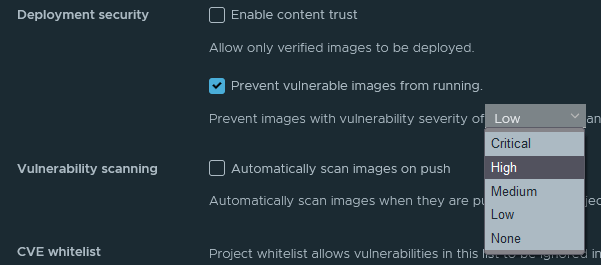
Once an image is scanned you can prevent deployment based on your desired threat level, if you for example set this to HIGH that means that if a container as a package with a vulnerability score of HIGH it will prevent deployment.
Warning
This could cause interruption of your service in kubernetes as the new image isn't able to load.
If a vulnerability doesn't impact your application, or you have taken other counter measures you can add them to the whitelist to still allow pulling of the image.
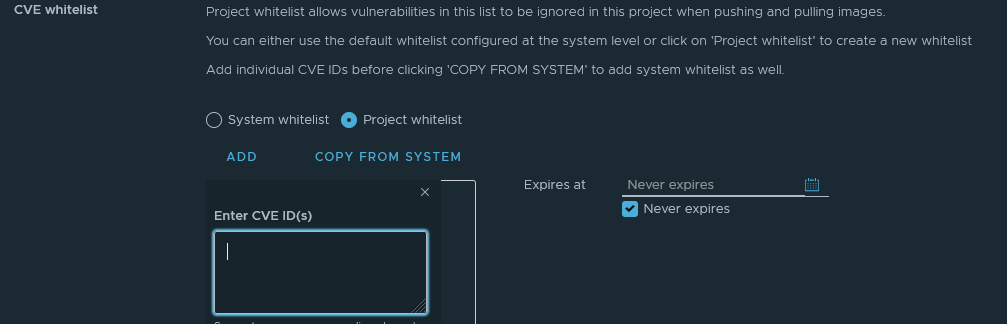
CI robot account setup
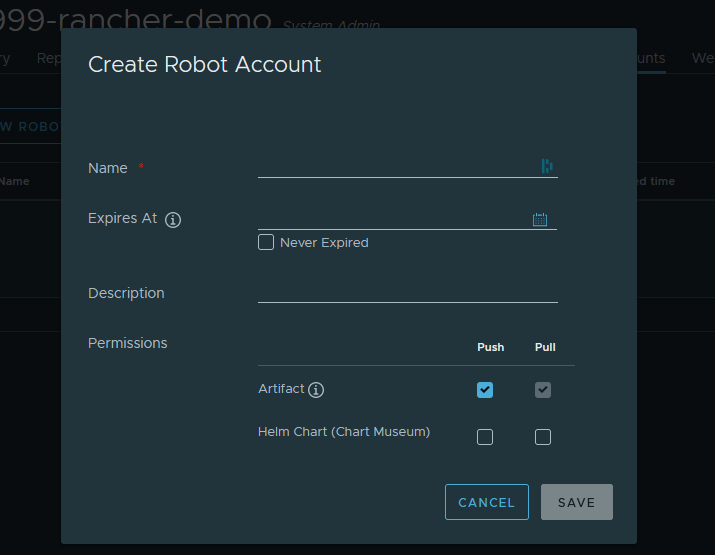
It's recommended to now put your admin account in any of the CI/CD pipelines. You can create robot accounts for this purpose.
Danger
Leaving the Expires at empty will cause the token to expire in 30 days, unless you checked Never expired
More information
https://goharbor.io/docs/2.0.0/working-with-projects/ the official documentation might help you.